Install guide
Open Kryptbox on Mac and Windows
The download is unsigned. macOS Gatekeeper and Windows SmartScreen will warn. That is expected — you can still install and run the app.
Why the warning appears
Apple and Microsoft show a developer-verification dialog for apps that are not notarized or code-signed. Kryptbox does not have an Apple Developer Program enrollment or a Windows Authenticode certificate yet, so the desktop build is unsigned. The warning is about signature status, not a report that the file is malware.
Download only from kryptbox.com/download or the GitHub releases page linked from there.
macOS (unsigned, no Developer ID)
Install from the disk image
Open the .dmg. Drag Kryptbox into Applications, then eject the disk image.
Control-click Open (do not double-click first)
In Finder, open Applications. Hold Control and click Kryptbox (or right-click), then choose Open. Double-clicking usually only shows the block dialog with a Move to Trash button.
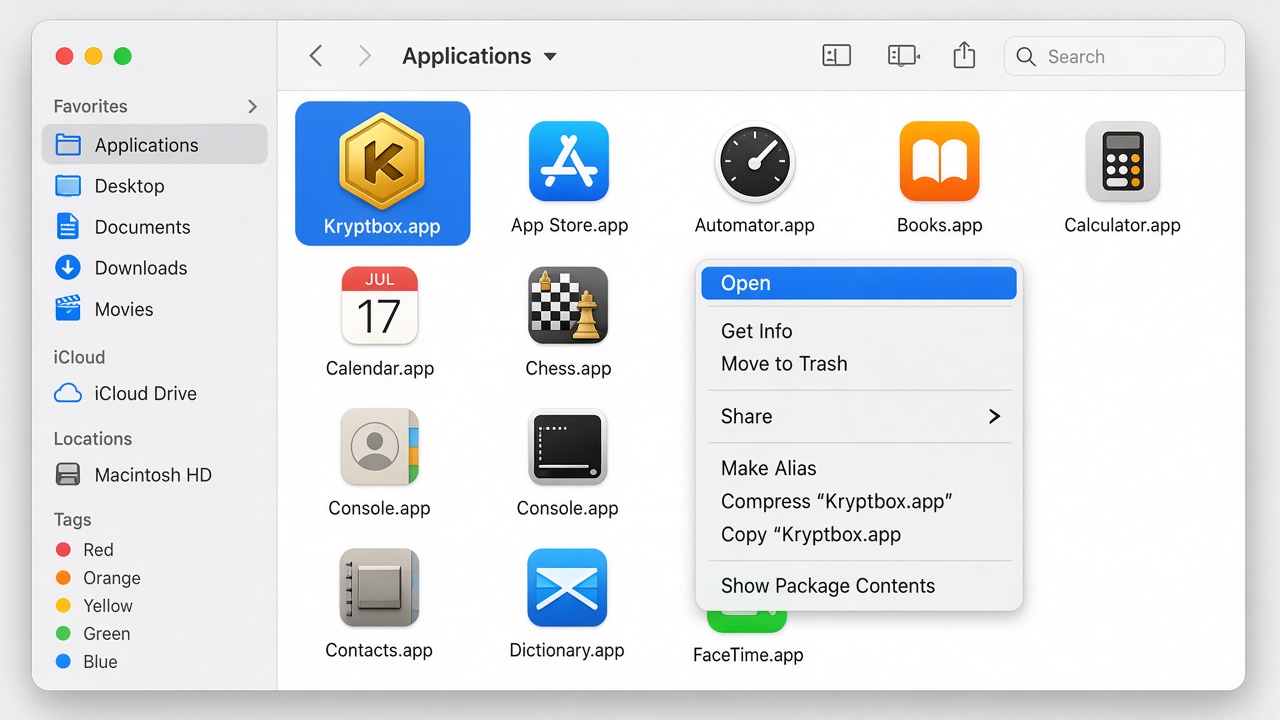
Finder → Applications → Control-click Kryptbox → Open. Confirm the “Apple cannot verify” dialog
macOS may say Apple cannot verify the developer. Choose Open to launch once. After that, Spotlight and the Dock can open it normally.
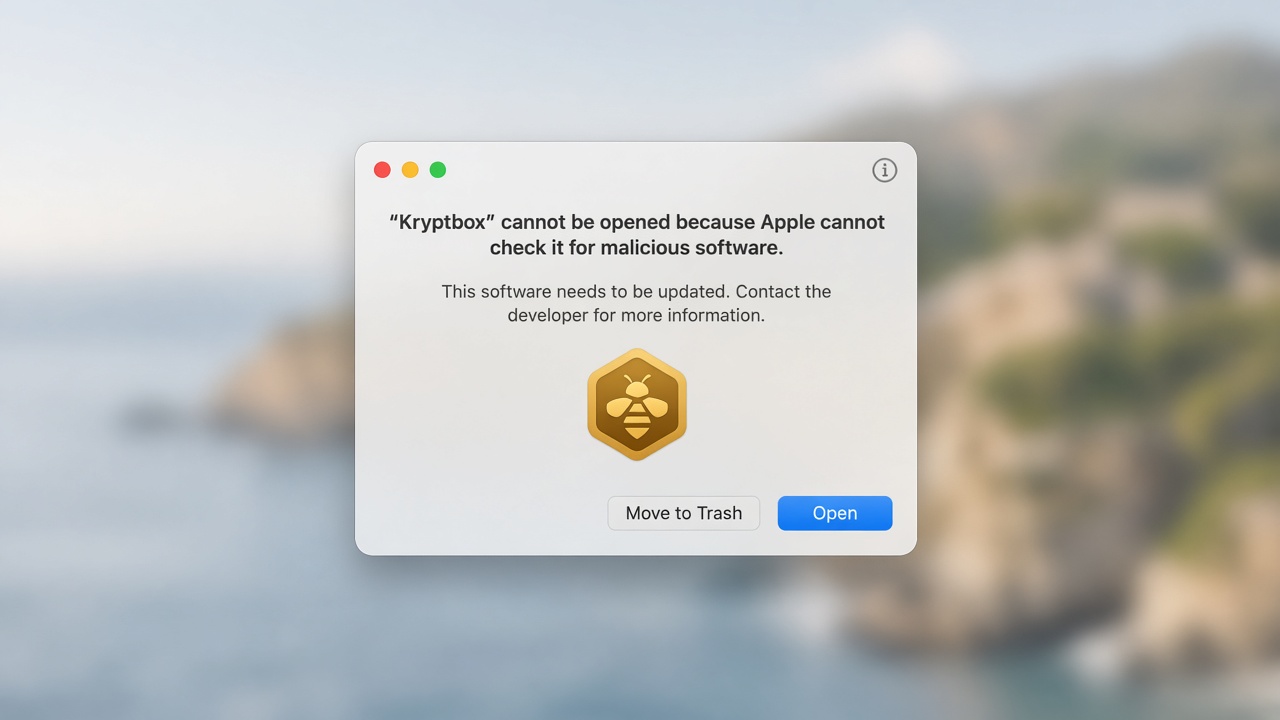
Gatekeeper dialog. Click Open — not Move to Trash. If Open is missing: Privacy & Security
Open System Settings → Privacy & Security. Scroll to the Security section. Next to a note that Kryptbox was blocked, click Open Anyway, then confirm.
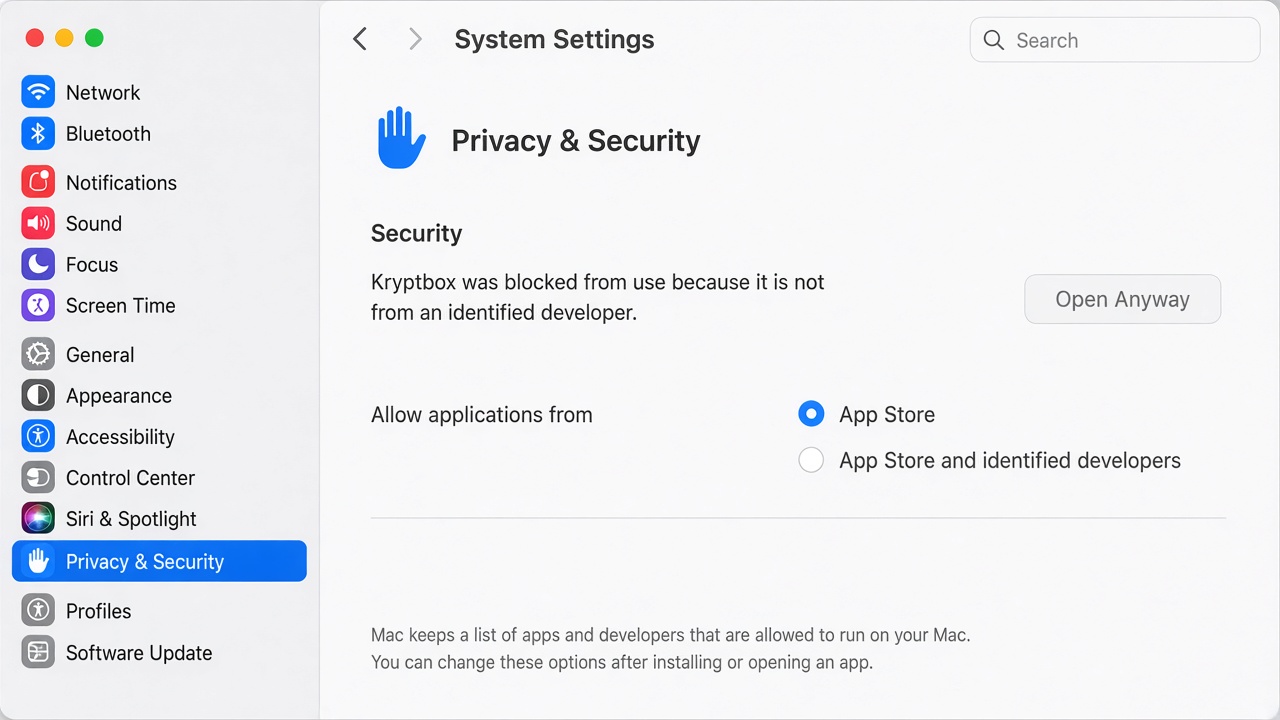
System Settings → Privacy & Security → Open Anyway. Fallback: clear quarantine
If the app still will not open, run this in Terminal, then try Control-click Open again:
xattr -cr /Applications/Kryptbox.app
Windows (SmartScreen / unsigned)
Run the installer
Open the .exe you downloaded. Microsoft Defender SmartScreen may show “Windows protected your PC” because the installer is not Authenticode-signed.
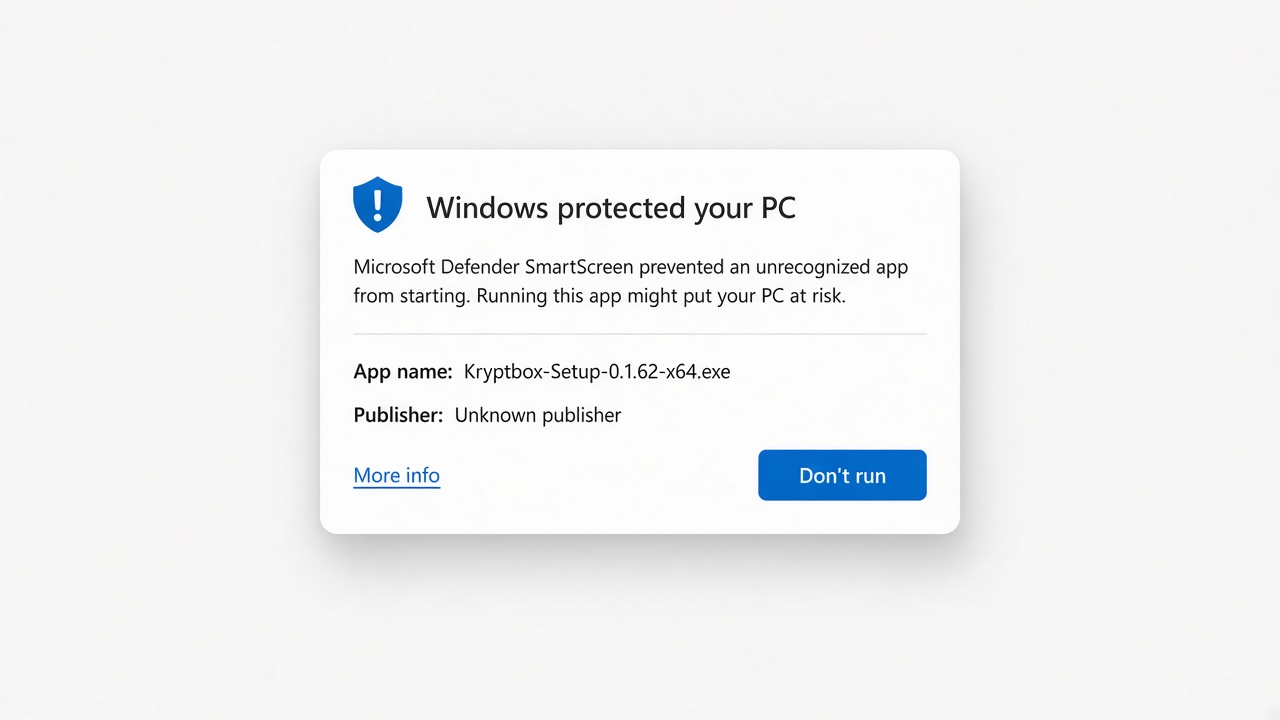
SmartScreen. Do not stop here — click More info. More info → Run anyway
Click More info. The publisher will show as unknown. Click Run anyway, then complete the installer.
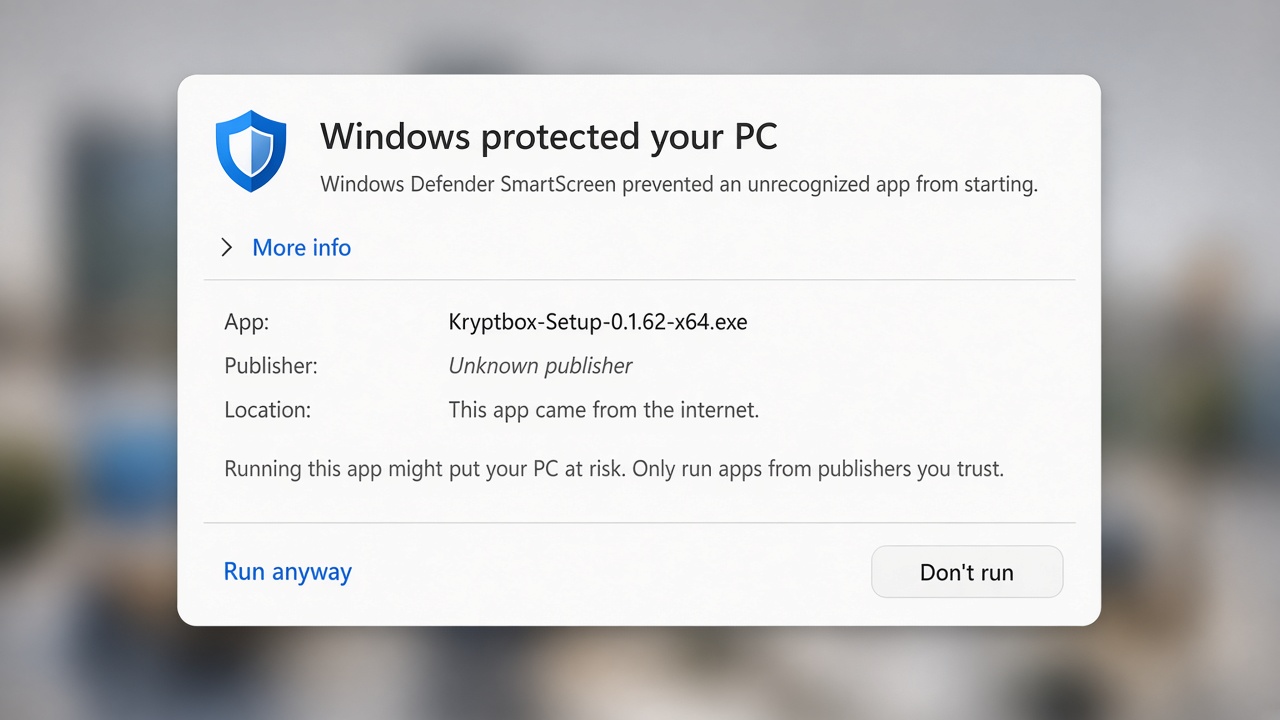
More info reveals Run anyway. Choose that, then finish setup. Launch from the Start menu
Search for Kryptbox after setup completes.
Linux AppImage
- Download the x86_64 or arm64 AppImage that matches your machine.
- Make it executable:
chmod +x Kryptbox-0.1.62-x86_64.AppImage
- Run it from a terminal or your file manager. No package install is required.
Arch users can also install from the AUR package kryptbox-bin.